Let’s get your button working.

I put the setup steps in one place so you can get to the first press without guessing. Plug the button into USB power, pair it with your Mac, then follow the steps for the name you see in Bluetooth settings.

The Laravel Button opens Terminal and sends laravel new followed by Return. The Solo Button brings Solo forward and shows what it’s doing with the light ring. Solo needs a small bridge installed on your Mac; the complete kit is below.

If anything here doesn’t match what you see, reply to the message I sent you and tell me where you got stuck.

— Chase
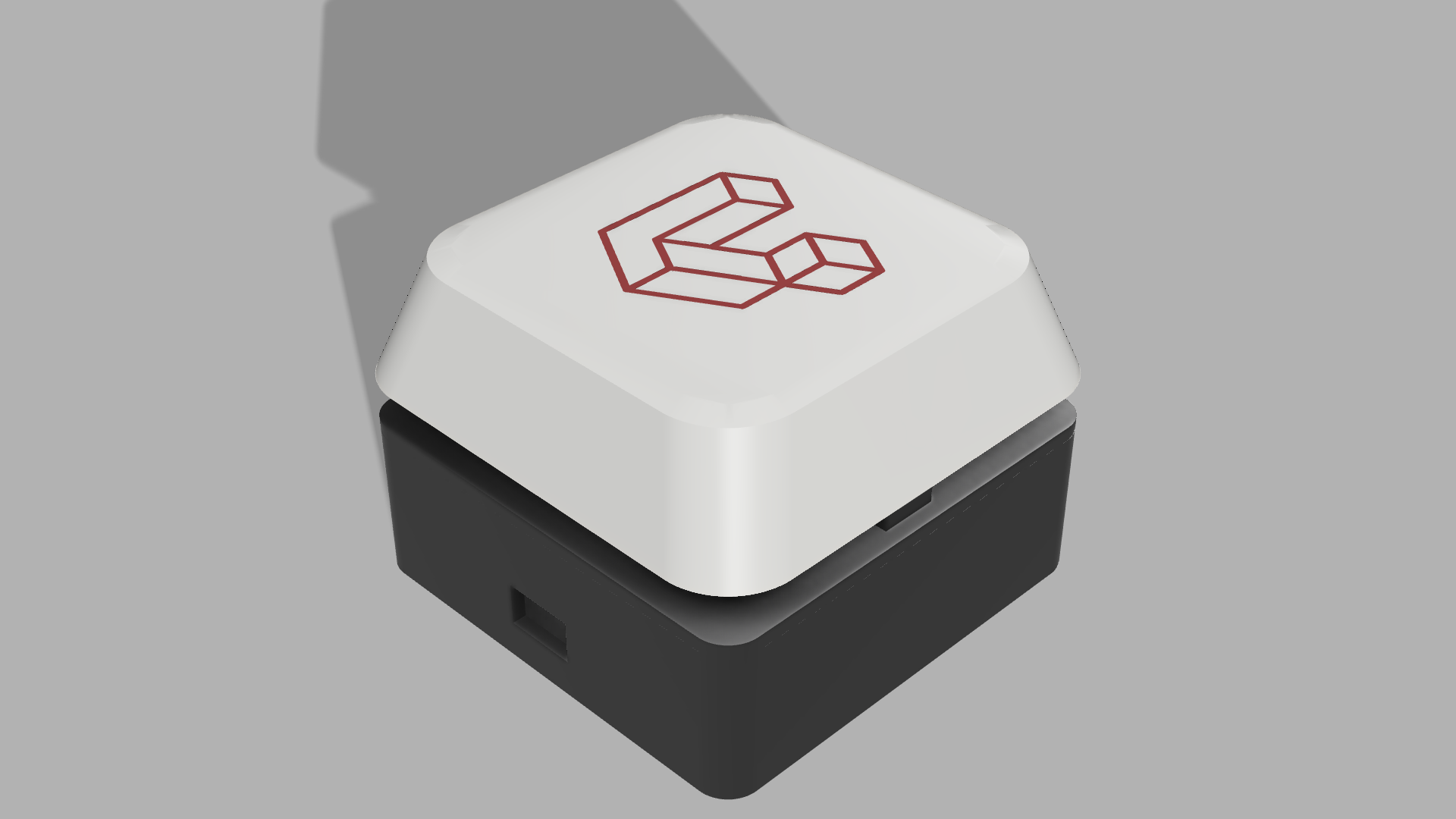
Render of the Laravel Button with a light cap, red Laravel logo, and dark base
This is the Laravel Button render. The Solo Button has the same basic shape with a different logo.

First, plug it in and pair it

  1. Plug the button’s USB-C power port into a 5 V USB power source.
  2. Keep it near your Mac and turn Bluetooth on.
  3. In your Mac’s Bluetooth settings, connect to Laravel Button or Solo Button, whichever name appears on yours.
  4. Then follow the steps for your version below. The Solo Button needs one more setup step on your Mac.

The cable supplies power; Bluetooth carries the button’s actions. Keep it plugged in while you use it. A wall adapter works fine—it doesn’t need USB data from your Mac.

Moving it to another Mac? Reset Bluetooth first

You don’t need to open the case or touch the small buttons on the internal board.

  1. Keep the button powered and press and hold the large button for 10 seconds.
  2. Release it after it restarts. The ring should pulse blue while it waits for a connection.
  3. If the receiving Mac already has an entry for this button, forget that entry first. Remove only the matching button—not your other Bluetooth devices.
  4. Connect to the button again in Bluetooth settings.
  5. For a Solo Button going to a different Mac, complete the Solo setup on that Mac too.

This clears the Bluetooth pairings stored on the button. It does not erase its programmed action, uninstall the Solo bridge, or remove the old entry from a Mac’s Bluetooth settings. Forget the button on the previous Mac as well when handing it to someone else.

If yours says Laravel Button

Check your Mac first

You need a programmed Laravel Button, USB power, and a Mac with Bluetooth. The supplied action is written for macOS and its standard Command–Space Spotlight shortcut.

Check that laravel new works when you run it yourself in Terminal. If Terminal says the command cannot be found, finish setting up the Laravel installer and your development environment before testing the button.

This version doesn’t need a companion bridge. Once it’s paired and powered, it works as a dedicated shortcut.

Try your first press

  1. Pair Laravel Button in Bluetooth settings.
  2. Wait for the brief white connection flashes. The ring then goes dark while connected and idle.
  3. Tap and release the button.
  4. The ring flashes red. The button opens Spotlight, launches Terminal, opens a new Terminal window, and sends laravel new followed by Return.
  5. Continue in Terminal to answer the Laravel installer’s questions.

Keep the Mac unlocked and avoid typing or switching apps while the shortcut is being sent. This is keyboard automation: it cannot check which app has focus or confirm whether the command succeeded.

What the Laravel light means

LightWhat it means
Pulsing blueWaiting for a Bluetooth connection.
Two brief white flashesBluetooth connected.
Ring off while connectedIdle and ready for a press.
Brief red flashFeedback for the action, or another press while the keyboard sequence is still being sent.

Rapid presses during the keyboard sequence still give red feedback, but they do not queue another command. Once the sequence finishes, another tap can run it again. The button does not track the Laravel process after sending the command.

A red flash is normal here. It’s feedback from the button, not proof that the command ran successfully.

If yours says Solo Button

The Solo Button needs a small bridge on your Mac to make the shortcut and status light work. I’ve included the complete setup kit below. It’s a set of readable scripts for macOS only, not a signed Mac app. You don’t need Arduino tools or to flash the button yourself.

Have these ready

  • A button already programmed with Solo Button v1 firmware and connected to USB power.
  • A Mac with Bluetooth and Solo installed.
  • Python 3.11–3.14 installed; Python is not bundled with the setup kit.
  • An internet connection for the one-time download of the bridge’s Python dependencies.
  • The complete Solo Button Handoff folder.
Download your Solo setup kit

Keep the extracted folder together. It includes the bridge, setup and diagnostic scripts, requirements, instructions, and optional agent prompt.

Set it up and try a press

  1. Open Solo and enable its local HTTP API in settings.
  2. Power and pair Solo Button in Mac Bluetooth settings. If it was paired to another Mac, use the 10-second reset first.
  3. In the extracted folder, double-click Setup Solo Button.command. Read the Terminal explanation and type yes when ready. Allow Bluetooth access if macOS asks.
  4. Choose your button from the list and confirm that its ring turns amber. Setup saves the selected button on this Mac.
  5. Tap the button. Solo should come forward and receive Command–Shift–E. In Solo 0.7.1, this opens Unreads.

The bridge starts at login and reconnects. Keep Solo’s local HTTP API enabled. If macOS blocks a downloaded script, review the files with someone you trust before running it; the kit does not disable Mac security protections.

What the Solo light means

LightWhat it means
Pulsing blueBluetooth disconnected.
Steady dim blueNo active processes, or an explicit “ready” task report.
Pulsing cyanA process is running, starting, or stopping, or an agent reported “working.”
Pulsing amberAn agent explicitly needs your attention.
RedA process reported “failed,” or an agent explicitly reported an error.
Pulsing purpleBridge heartbeat missing or Solo’s API unavailable.
Brief white flashesConnection or physical button press.

Automatic mode watches Solo processes. A stopped or exited process does not prove a task succeeded. A persistent server may keep the light cyan. More precise task states need a local agent to follow the optional prompt; explicit reports expire after five minutes.

Optional agent status and advanced details

The kit includes AGENT PROMPT.txt. Paste it into a local agent chat in Solo if you want the agent to report working, attention, ready, and error states. Remote agents cannot run this Mac’s local helper.

The status helper is installed at $HOME/.local/bin/solo-status. Reports expire after five minutes and the light returns to automatic monitoring. One ring shows one state; the latest explicit report wins. This version supports one button per Mac bridge.

The bridge stores its private environment and configuration in ~/Library/Application Support/SoloButton/ and starts through a per-user login agent. Solo API credentials stay on the Mac.

Troubleshooting and compatibility

Laravel Button

If nothing happens, confirm USB power, Bluetooth pairing, a working laravel new command, and the standard Command–Space shortcut. Keep the Mac unlocked and wait for the keyboard sequence to finish before pressing again.

A red flash confirms button feedback, not that Terminal ran the command successfully.

Solo Button

Run Diagnostics.command from the setup kit to check the installation, login service, API access, and recent logs. A purple ring calls for checking that Solo is open, its local HTTP API is enabled, and Bluetooth permission was granted to the bridge.

Use Start Bridge.command to restart the configured bridge, or Stop Bridge.command to stop it.

Compatibility notes

I built these as independent buttons for use with Laravel and Solo; they aren’t official products from either team. The Solo firmware and bridge were tested on macOS 15.3.1 with Solo 0.7.1 and Python 3.14. The portable installer has been tested with simulated system operations, but has not yet been installed on another person’s Mac. Other versions may behave differently.

Still stuck?

Reply to me with the button’s name, what the ring is doing, and what you see on your Mac. That’ll give me a good place to start.